Write down where your photos are stored, which copies are complete and when you last recovered a file from a backup. Then ask an AI assistant to find gaps in that written record. Keep the actual copying and checking in your photo or backup software, with the paper log beside you.
I would start with one recent folder whose original files are still available. It gives you a manageable check without reorganizing the whole library. If your backup software already produces a clear report and you understand it, you can use the worksheet directly and skip the AI review.
Print the blank copy log · Print the filled practice example · Download the complete prompt. The sheets fit A4 or US Letter; choose Save as PDF in the print dialog for a digital copy.
1. List actual copies before making a plan
Give the project a short name and record its original location. For every additional copy, write the device or service, folder, last copy date and evidence you have checked. “Copy finished” and “restored a file successfully” describe different observations. Leave unknown fields blank.
Two folders on the same physical drive do not protect against losing that drive. A drive sitting beside the computer shares risks such as theft or damage to that room. CISA’s backup guidance describes the 3-2-1 approach: three copies, two media types and one copy offsite. Use that as a planning check; a list of three names alone does not prove the copies work.
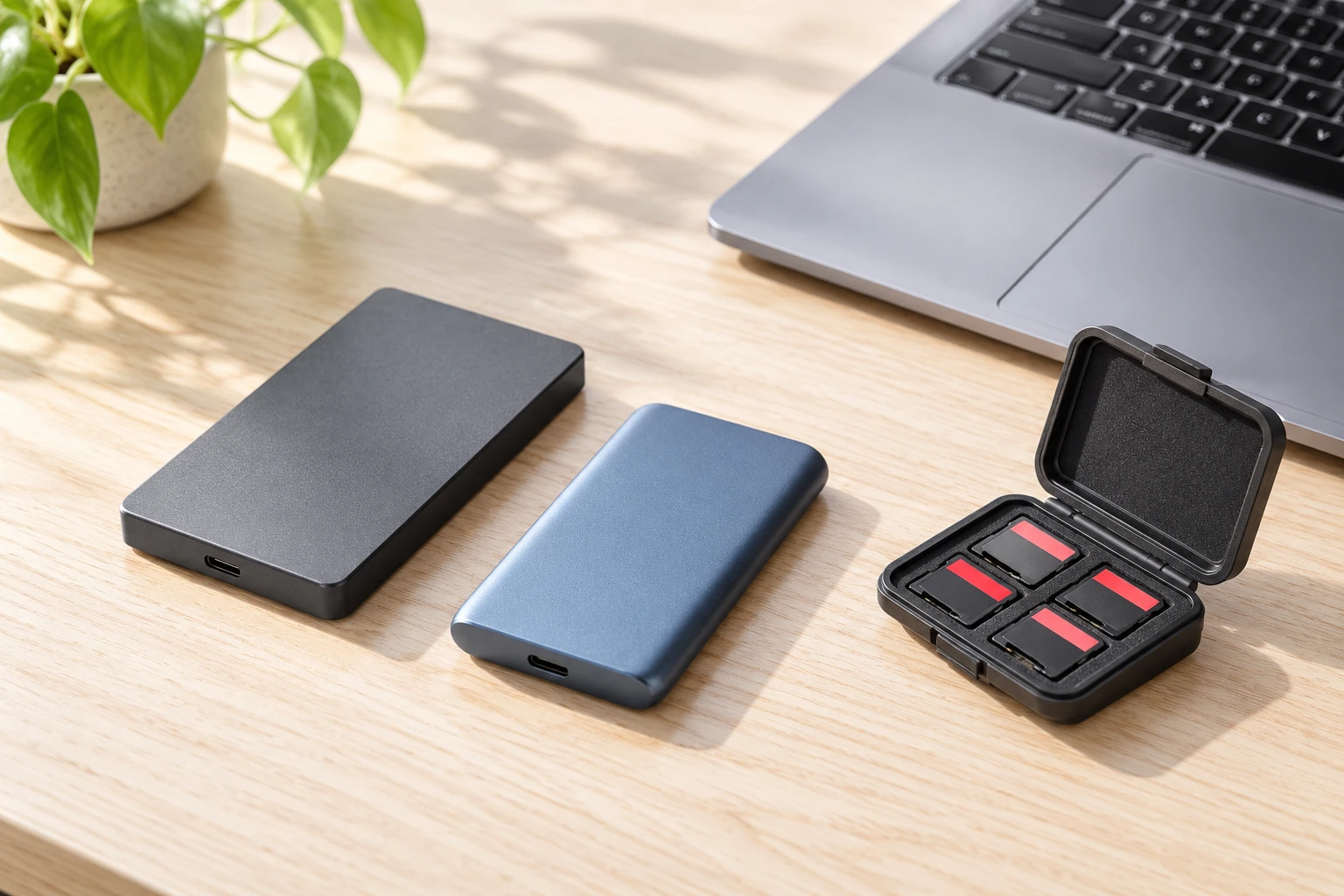
For iCloud Photos, Apple explains that deletions propagate across devices and that these photos are not duplicated in iCloud Backup. Apple recommends keeping backup copies of the library. Record a synchronized library accurately instead of assuming each device is an independent recovery copy.
2. Ask AI to inspect the written inventory
The example below is invented practice material. Its counts and device names are illustrative, and the sample response is not a measured test result. You can paste it into a text-based assistant without uploading photographs or granting access to a drive. Replace the example with a short, non-sensitive description when ready.
OpenAI’s prompting guidance recommends specific instructions and enough context. Here, the important constraint is that the assistant must distinguish evidence from plans.
Review this written photo-backup inventory. You have no access to my files. Use only the facts provided. Return: confirmed facts, gaps, and a numbered checklist for me to verify. Keep planned copies separate from completed copies. Do not say files are safe, verified or recoverable without evidence. Do not recommend deleting, formatting or overwriting anything. Do not invent software, paths, dates or test results.

PRACTICE INVENTORY, 21 October 2026
Project: autumn-walk. Original camera card: CARD-A, retained unchanged.
Working folder: laptop/Pictures/autumn-walk; copied yesterday; 120 JPEG files reported. No transfer error was noticed.
Backup A: USB drive BLUE, folder autumn-walk; copy operation reported complete; file count and opening check not done. Drive sits beside laptop.
Backup B: offsite copy planned, not created. Service or device not selected.
Restore check: none. No files have been copied back from BLUE into a separate test folder.
Goal: identify what to check next and record the result on paper. Keep the original card unchanged throughout this check.
3. Compare the answer with this worked example
| Copy or check | Evidence supplied | Next human check |
|---|---|---|
| CARD-A | Original retained | Leave unchanged during checks |
| Laptop folder | 120 JPEGs reported | Compare inventory with source |
| BLUE USB drive | Copy reported complete | Compare files; test a separate restore |
| Offsite backup | Planned only | Choose destination, create and verify |
| Restore record | No test yet | Record actual result after test |
A useful response should say that Backup B does not exist yet. It should also keep BLUE’s reported copy completion separate from a successful restore check. If the answer describes “three verified copies,” correct it: the input contains no such evidence.
Having 120 files in both locations would be a useful comparison, but matching counts cannot establish that every file has identical, intact contents. Use your backup tool’s verification features where available. Record which method you actually used rather than writing a broad “all safe” conclusion.
4. Make a small restore check and record its limits
- Confirm the source and backup locations in the software before doing anything. Keep the original card unchanged.
- Create a separate, clearly named test folder with enough space. Do not restore over the working folder.
- Use the backup tool’s documented restore procedure, or copy files back from the backup if it is a plain file copy. Select examples from different parts of the folder, including different file types if present.
- Open the recovered files in a suitable application and inspect them. For video, check playback too. Note errors and any missing files.
- Write the date, backup source, files checked and outcome on the log. A successful sample checks those files; it does not certify the entire archive.

I would leave any failed or uncertain check visibly unfinished. A neat checklist is less useful than a precise note such as “BLUE: first and last JPEG opened; remaining files not checked.” If you cannot identify the source or destination confidently, stop the operation and consult the software’s instructions before proceeding.
5. Give each gap a next action
For this practice batch, the immediate actions are to verify BLUE and choose an offsite destination. Write a review date beside each. Keep the original until your copying, verification and retention decisions are complete; this guide does not call for deleting or formatting it.
Use the paper-and-AI weekly planner to reserve time for the unfinished check. If you later delegate a separate research task to an agent, the agent brief template helps specify scope and review points. This prompt only reviews the inventory you paste into the chat.